Day 6
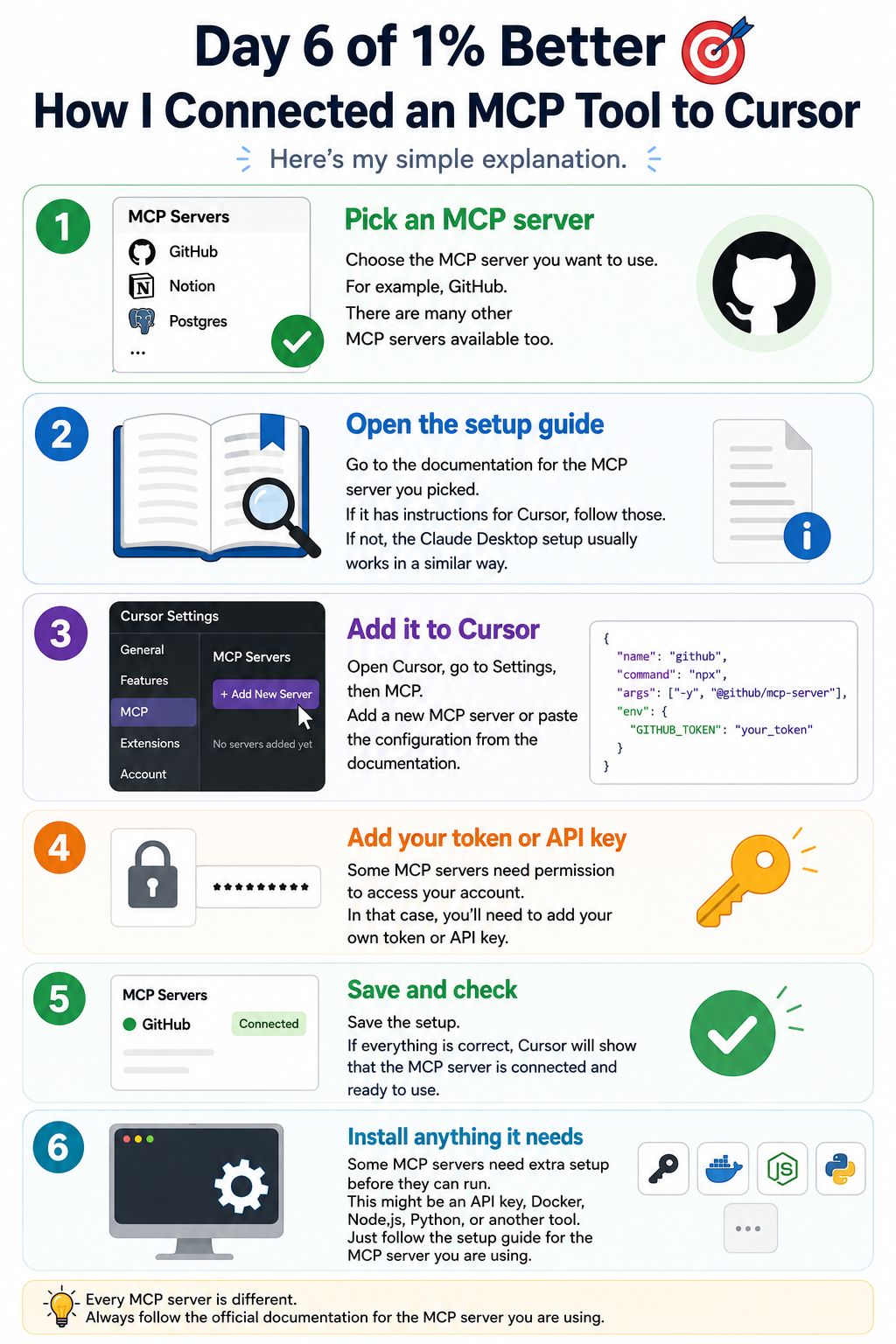
Day 6 of 1% better.
Today I learned how to connect an MCP tool to Cursor. Here's my simple explanation.
1. Pick an MCP server
First, choose the MCP server you want to use. For example, GitHub. There are many other MCP servers available too.
2. Open the setup guide
Go to the documentation for the MCP server you picked. If it has instructions for Cursor, follow those. If not, the Claude Desktop setup usually works in a similar way.
3. Add it to Cursor
Open Cursor, go to Settings, then find the MCP section. Add a new MCP server and paste the setup information from the documentation.
4. Add your token or API key
Some MCP servers need permission to access your account. In that case, you'll need to add your own token or API key.
5. Save and check
Save the setup. If everything is correct, Cursor will show that the MCP server is connected and ready to use.
6. Install anything it needs
Some MCP servers need extra software to run. For example, some require Node.js, while others may need an API key or a different setup. Just follow the instructions in the documentation.
LinkedIn post: https://lnkd.in/p/gYyG99M8 (opens in a new tab)